

If you are trying to get things done on your console, there is nothing more frustrating than seeing the install bar freeze. While PC players have bee
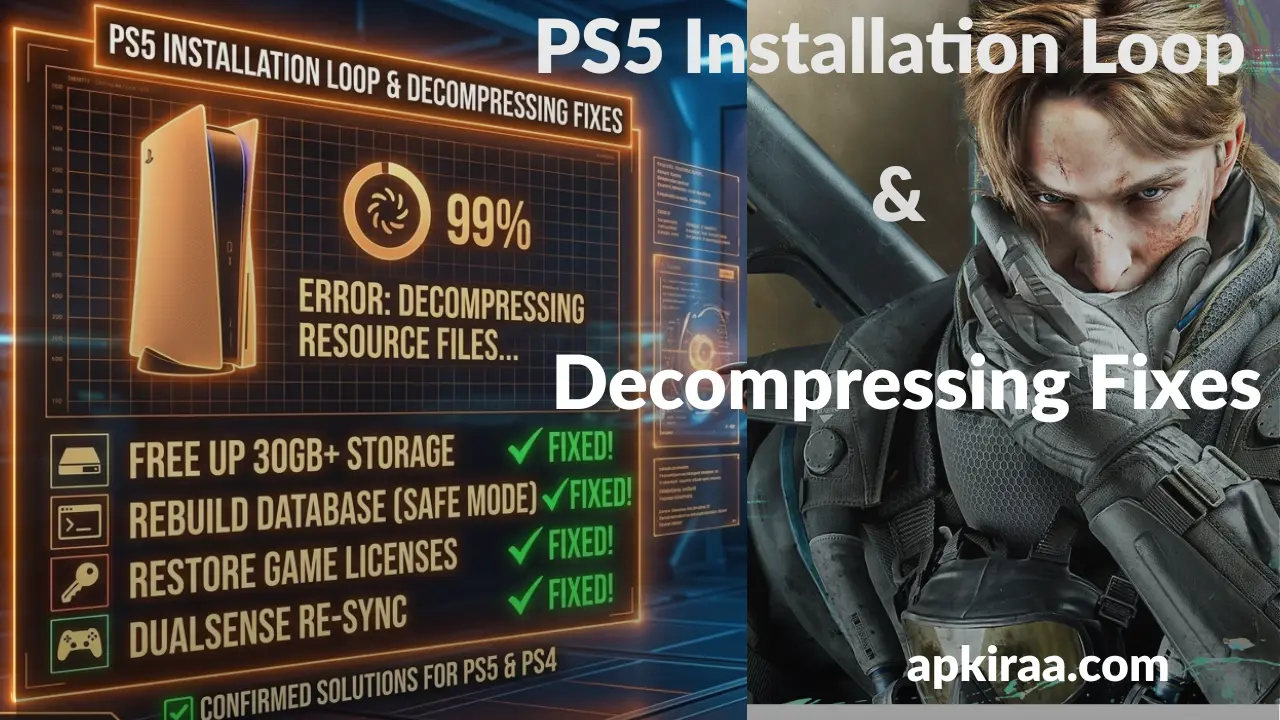
If you are trying to get things done on your console, there is nothing more frustrating than seeing the install bar freeze. While PC players have been tweaking their desktop firewalls, PlayStation 5 owners have come face to face with an annoying roadblock: booting up the game only to find that Delta Force is stuck on decompressing resource files on the PS5.
Finding your console delta force ps5 stuck on decompressing resource files is an instant buzzkill. Your system gets stuck in an infinite loop, where the percentage bar refuses to go past 0%, 50%, or 99%. You sit there waiting, hoping it’s just a big file unpacking, but after staring at the same static loading screen for thirty minutes, reality sets in. Your installation is completely buggy.
When a massive cross play shooter launches its game assets on a console SSD, any small network drop or local data fragmentation can cause the game client to corrupt its own temporary files. PS5 gets stuck trying to read a broken archive, looping repeatedly without throwing a clear error code. If you are experiencing desktop launcher crashes or deep setup freezes, head over to our complete master directory that tracks Delta Force Hawk Ops’ known bug fixes to instantly fix every major platform bug.
📱 Game Fixed? Join Our Community For Daily Error Fixes & APK Updates!
However, if you are stuck seeing that Delta Force ps5 decompressing resource files message now, don’t worry. You don’t have to wait for the massive developer patch to roll out. Let’s take a look at how to clear those corrupt local assets and force your PlayStation 5 to safely re-verify the installation.
Quick-Reference Decompressing Fix Table
When the decompression process gets stuck, the PS5 rarely throws a clear error code on the screen. Instead of forcing yourself to guess which system stage is stuck, use this quick reference table to match your exact loading symptom with the correct troubleshooting path.
| Stuck Percentage / Symptom | What It Means | Root Cause | Immediate Action |
| Stuck at 0% / Instant Freeze | Storage Initialization Failure | The system cannot write the initial uncompressed game directory to the SSD. | Free up at least 30GB of extra storage space beyond the game’s file size. |
| Stuck at 50% – 80% Loop | Corrupted Update Segment | A minor network drop during the download phase corrupted a mid-tier asset block. | Rebuild the console database from Safe Mode to patch fragmented file sectors. |
| Stuck at 99% / Spinning Wheel | Security/License Handshake Block | The game finished unpacking but is failing to verify game licenses with the PSN backend. | Clear system software cache and restore game licenses via account settings. |
How to Fix Delta Force PS5 Stuck on Decompressing Error
If your console has been running for more than 20 minutes and that percentage bar hasn’t changed a single digit, your local installation files are definitely stuck in a loop. Since the PlayStation operating system separates application data, a simple console restart usually won’t clear a bad cache block.
Typically, these installation lockups occur due to background micro drops in your internet connection corrupting the file packet while downloading. If you suspect your network line is unstable, it is highly recommended to cross reference our separate Delta Force Connection Failure Error Guide to optimize your local connection routing first.
Once your internet line is stable, follow this exact step-by-step physical console clean up to clear corrupted files and force clean asset decompression.

1. Delete the Stuck Build and Clear System Storage Margin
Modern high speed SSDs need plenty of breathing space to successfully unpack compressed game archives. If your storage is almost full, the decompression process will silently freeze because it doesn’t have the temporary workspace it needs to extract huge asset folders.
1. Go to the PS5 home screen, highlight the Delta Force icon, press the Options button on your DualSense controller, and select Delete.
2. Navigate to your console settings (gear icon in the top right) and choose Storage and then Console Storage.
3. Look at your free space. If you have less than 30GB to 40GB of free overhead room after calculating the size of the original game installation, delete an old clip or unused game app. Having extra structural breathing room will prevent installation loops.
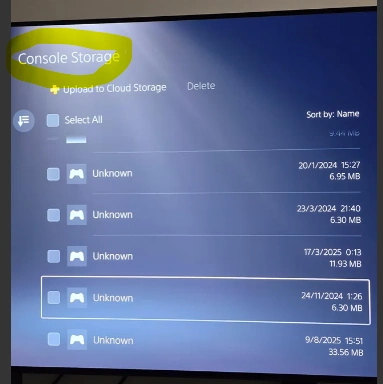
4. Look at your free space. If you have less than 30GB to 40GB of free overhead room after calculating the size of the original game installation, delete an old clip or unused game app. Having that extra structural breathing room prevents your installation from throwing a loop and leaving delta force ps5 stuck on decompressing progress bars permanently.
2. Clear the PS5 System Cache & Rebuild Database via Safe Mode
If a corrupted file is stuck in your console’s temporary hardware system cache, it will immediately corrupt your new download attempts. Use the official instructions on how to use safe mode on PS5 consoles to completely clear the system cache and fix your Delta Force ps5 stuck on decompression loop via the hardware menu.
1. Turn off your PlayStation 5 completely by holding down the physical power button on the front of the console until it beeps twice.
2. After the console’s power indicator light turns completely black, press and hold the power button for about 7 to 8 seconds. Release it only after you hear the second characteristic beep.

3. Connect your DualSense controller using a physical USB-C cable and press the PS button to activate the on-screen menu.
4. Navigate down and select option 5: Clear cache and rebuild database.
5. Select Rebuild Database first. The console will analyze its storage drive structure and restart safely. For in-depth system asset management designs, you can cross reference the official PlayStation 5 System Storage Guide.
3. Restore PlayStation Account Licenses
Sometimes asset decompression will finish completely in the background, but the console’s internal software security will block the launch due to a failed active user profile license handshake.
1. Go to your console’s main settings dashboard.
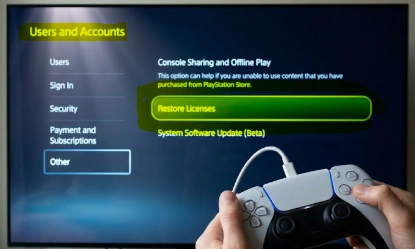
2. Select Users and Accounts and then go to Other.
3. Click on ‘Restore Licenses’ and confirm the prompt. This will take less than a minute and will cleanly sync all your digital game permissions to the network.
4. Restart your console normally, go to your library, and start a new, uninterrupted download.

Frequently Asked Questions (FAQ’s)
Why does Delta Force get stuck at exactly 99% during decompression?
When the progress bar reaches 99%, the console will have finished unpacking the main asset files and is attempting to perform a final security handshake with the PlayStation Network servers to verify your game license. If there is a temporary network glitch or profile sync lag, the installation will get stuck at the finish line. Running the “Restore Licenses” step will fix this immediately.
Will rebuilding the PS5 database erase my saved game data?
No. Rebuilding your database is like defragmenting a computer hard drive. It reorganizes the system structure, cleans up corrupted temporary files, and makes the console run smoother, but it never touches or deletes your personal save files, game progress, or user profiles.
How much actual storage space do I need to clear to prevent installation loops?
As a general rule of thumb for modern high-speed SSDs, you should have at least 30GB to 40GB of free space above the game’s actual listed download size. The console needs this extra breathing space to extract large, compressed zip folders before deleting the temporary installation files.
Conclusion
Being stuck on a constant loading screen when you just want to get into a match can be incredibly frustrating. However, you don’t have to wait for a massive developer patch to sort things out. By cleaning up your console’s storage space, forcing a quick system database rebuild via Safe Mode, and refreshing your network credentials with a license restore, you can bypass the error and get your game running smoothly.
“If you encounter any other issues along the way or notice sudden network lag after you finally boot into the main lobby, feel free to check back with our comprehensive Master Troubleshooting Index on Delta Force Hawk Ops, the Known Issues Troubleshooting Guide, or log a ticket directly with the Delta Force Player Support Portal for live account backend checks.”

COMMENTS