

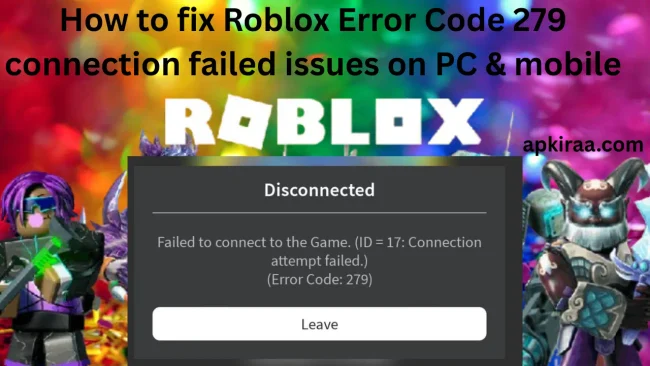
Few things are as frustrating as being greeted by a grey pop-up box that says "Failed to connect to game. (ID=17: Connection attempt failed)" when yo
Few things are as frustrating as being greeted by a grey pop-up box that says “Failed to connect to game. (ID=17: Connection attempt failed)” when you launch your favourite experience. Network disconnects are one of the most common issues players face on Windows, Android, and iOS. Learning how to fix Roblox error code 279, error 277, and error 266 will ensure that you can quickly re-establish your network socket, bypass ISP routing blocks, and get straight back into the match without losing session progress.
These connection errors typically occur when the local Roblox client fails to establish or maintain a persistent data handshake with the remote host server. Whether caused by strict router firewall permissions, a faulty local socket cache, or sudden wireless packet drops, this step-by-step guide breaks down the exact technical solutions to permanently resolve these errors.
(Check out our complete Roblox Error Code Master Index for a complete directory of all platform issues, including security kicks, authentication locks, and memory crashes.)
📱 Game Fixed? Join Our Community For Daily Error Fixes & APK Updates!
How to Fix Roblox Error Code 279 Diagnostic Breakdown: Identifying Your Connection Error Code
Before applying network solutions, identify the exact status code displayed on your screen to target the root cause:
Error Code 279 (ID=17 / ID=148): Indicates a failed initial connection handshake. This usually indicates strict router firewall ports, restricted ISP DNS routing, or an active third-party antivirus blocking Roblox UDP traffic.
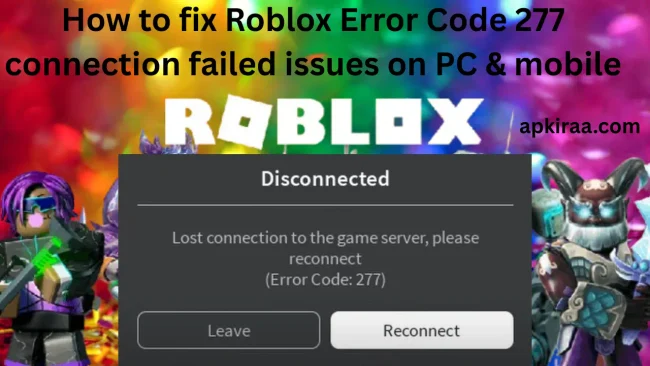
Error Code 277: Indicates that the server has disconnected in the middle of a game. This occurs when your local client server stops receiving packets due to a drop in Wi-Fi signal, a router buffer overflow, or sudden bandwidth throttling.
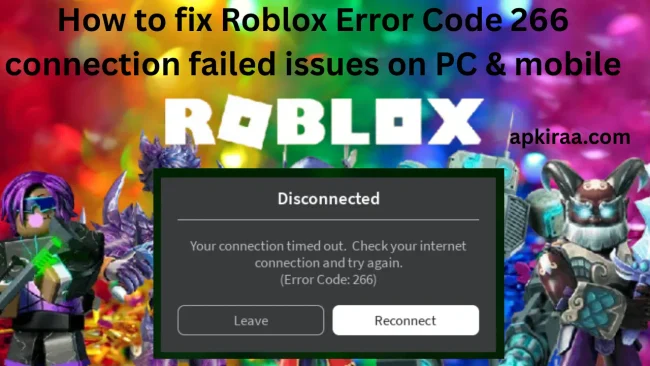
Error Code 266: Represents an idle timeout connection. Roblox will automatically terminate the connection socket if the delay becomes too high or if your client stops responding to the game server.
Error Code 271 & 272: Triggered when the client is disconnected due to 20+ minutes of inactivity (error 271) or when the session link is broken due to a security encryption key mismatch (error 272).
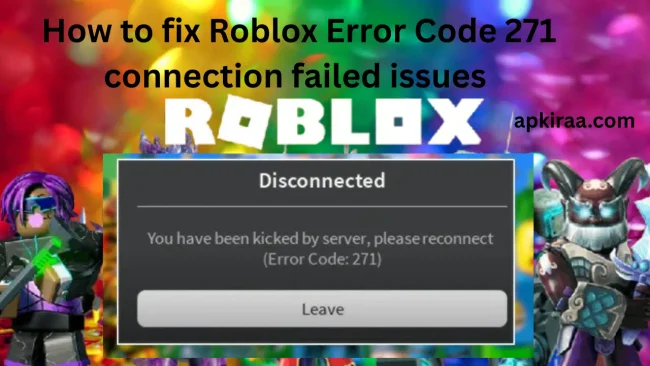
Follow the steps below on how to fix Roblox error code 279, 277, and 266.
Step 1: Clear DNS cache and release network IP (Windows PC)
Corrupted local DNS records prevent your system from resolving Roblox host server addresses. Flushing your local DNS cache forces your operating system to request new network routing data.
1. First, Press Windows key + S and then type cmd. Now, right-click on Command Prompt, and select Run as administrator.
2. Type the following command and press Enter:
ipconfig /flushdns
3. Release and renew your local IP address by entering these commands in sequence:
ipconfig /release
ipconfig /renew
4. Now, Reset your network winsock catalog:
netsh winsock reset
5. Finally, Restart your computer and test Roblox by starting it.
Step 2: Switch to public DNS (Google and Cloudflare) For how to fix Roblox error code 279, 277, and 266.
Default ISP DNS servers often fail to resolve Roblox game server clusters effectively, leading directly to error code 279 (ID=17). Switching to Google or Cloudflare DNS establishes a direct, high-speed routing path.
On a Windows PC:
1. Press Windows key + R, type ncpa.cpl, and press Enter to open Network Connections.
2. Then, Right click your active connection (Wi-Fi or Ethernet) and select Properties.
3. Double click Internet Protocol Version 4 (TCP/IPv4).
4. Now, Select the following DNS server addresses and input using:
Preferred DNS server: 8.8.8.8 (Google) or 1.1.1.1 (Cloudflare)
Alternate DNS server: 8.8.4.4 (Google) or 1.0.0.1 (Cloudflare)
5. At last Check the Validate settings after exiting and click OK.
On Android and iOS mobile:
1. Open Settings on your phone and go to Network & Internet (or Connections).
2. Tap Private DNS and select the hostname of the private DNS provider.
3. Enter dns.google or one.one.one.one and save.
(For detailed visual examples of configuring private DNS on mobile devices, check out our free Fire MAX Network Connection Troubleshooting Guide.)
Step 3: Configure Windows Defender Firewall port exceptions
Windows Defender Firewall often flags Roblox’s dynamically assigned UDP ports (ports 49152 to 65535), which causes connection handshake drops.
1. Open the Start menu, type Windows Defender Firewall with Advanced Security, and press Enter.
2. Click Inbound Rules in the left pane, then click New Rule on the right.
3. Select a program and click Next.
4. Browse to the path to your Roblox executable.
%localappdata%\Roblox\Versions\ (select the folder for the latest version and select RobloxPlayerBeta.exe).
5. Select Allow Connection, check Domain, Private, and Public, name the Roblox Client Inbound Rule, and click Finish.
6. Repeat the same process under Outbound Rules.
Step 4: Clear Roblox AppData and Temporary Cache Files
Temporary files accumulated after weekly platform updates may become corrupted, causing client disconnect loops.
On Windows:
1. Press Windows key + R, type %localappdata%\Roblox, and press Enter.
2. Select all the folders inside and delete them (this will not delete your account or inventory).
3. Empty your Recycle Bin and restart Roblox.
On mobile (Android / iOS):
1. Android: Open Settings and go to Apps, choose Roblox and then Storage, finally Clear Cache.
2. iOS: Delete the Roblox app and reinstall it from the App Store to completely delete temporary local storage.
Step 5: Disable invasive browser extensions and ad-blockers
If you launch Roblox experiences through web browsers like Google Chrome, Mozilla Firefox, or Microsoft Edge, ad-blockers and privacy extensions may block connection scripts.
1. Open your browser extension manager (chrome://extensions or edge://extensions).
2. Temporarily turn off all ad-blockers, script blockers, and virtual private network (VPN) extensions.
3. Clear your browser cookies and site data for roblox.com.
4. Restart the experience directly from the official website.
Step 6: Enable router UPnP (Universal Plug and Play).
A strict NAT (Network Address Translation) configuration can block Roblox’s dynamic UDP ports. Enabling UPnP allows the Roblox client to automatically open the required ports:

1. Open your web browser and enter your router’s default gateway IP (usually 192.168.1.1 or 192.168.0.1).
2. Log in using your router’s administrator credentials.
3. Navigate to Advanced Settings > NAT or Port Forwarding.
4. Locate UPnP and make sure it is enabled.
5. Save your settings and reboot your router.
(Getting disconnected in other online multiplayer games too? Read our universal guide on how to fix online game errors on PC and mobile.)
Frequently Asked Questions (FAQ’s)
What does “ID=17” mean in Roblox error 279?
ID=17 means that the client attempted to establish a connection with the target server instance, but the connection timed out before the handshake was completed. This is almost always caused by firewall restrictions, closed UDP ports, or an unstable DNS server.
Will changing my DNS improve Roblox ping?
Switching to a fast public DNS (like Google DNS or Cloudflare) improves domain resolution speed and prevents routing errors, which reduces packet loss and prevents sudden disconnections.
Why do I keep getting error 277 on Wi-Fi but not on mobile data?
Wi-Fi error 277 usually indicates wireless interference, high packet loss, or a router buffer overflow. Switching to the 5GHz Wi-Fi band, using an Ethernet cable, or changing your router’s DNS may resolve the issue.
Conclusion: Restoring a stable connection to Roblox
Connection timeout errors like 279, 277, and 266 can interrupt your game, but they are almost always caused by local network misconfigurations or firewall interruptions rather than permanent account issues. By systematically flushing your DNS cache, switching to Google or Cloudflare DNS, adding firewall exceptions to the Roblox client executable, and clearing the corrupted local AppData cache, you can eliminate handshake failures and keep your connection solid.

COMMENTS