

Brief Summary: If you see the error "Try again later: We're restricting some activities to protect our community," your account has been placed in an
Brief Summary: If you see the error “Try again later: We’re restricting some activities to protect our community,” your account has been placed in an automatic cool down loop. Applying the immediate Instagram Try again later error fix will safely unblock your account by resetting your IP address, invalidating active app tokens, and clearing the app cache.
Why Instagram Restricted Your Account
While you are scrolling through Instagram, trying to like a picture, leave a comment, or follow a profile, suddenly a frustrating pop-up interrupts you.
“Try again later: We restrict some activities to protect our community. Let us know if you think we made a mistake.”
📱 Game Fixed? Join Our Community For Daily Error Fixes & APK Updates!
If you are stuck in this restriction loop, you will need a reliable Instagram error resolution strategy before you risk triggering an automatic ban, then try again.
In this multi part guide, we will walk you step-by-step through clearing your cache, changing network fingerprints, and revoking background tokens so you can get back to using Instagram normally.
Recently recovered your account after an appeal? Check our guide on how to remove connected apps and fix API background locks.
Account locked immediately after update? Read our solution to Instagram account suspended after update.
Instagram Try Again Later Error Fix: Force Clear Your Device Cache & Reset IP Footprint
When Instagram triggers an action block, their anti spam system flags three different identifiers, your user ID, your device footprint, and your IP address. If you are attempting actions while connected to the same network, the automatic timer will continually reset.
Try it immediately on Instagram and then you will need to disconnect these local connections to implement the error fix.

1. Change your IP address (change networks)
1. If you are connected to Wi-Fi: Immediately turn off Wi-Fi and switch to mobile data.
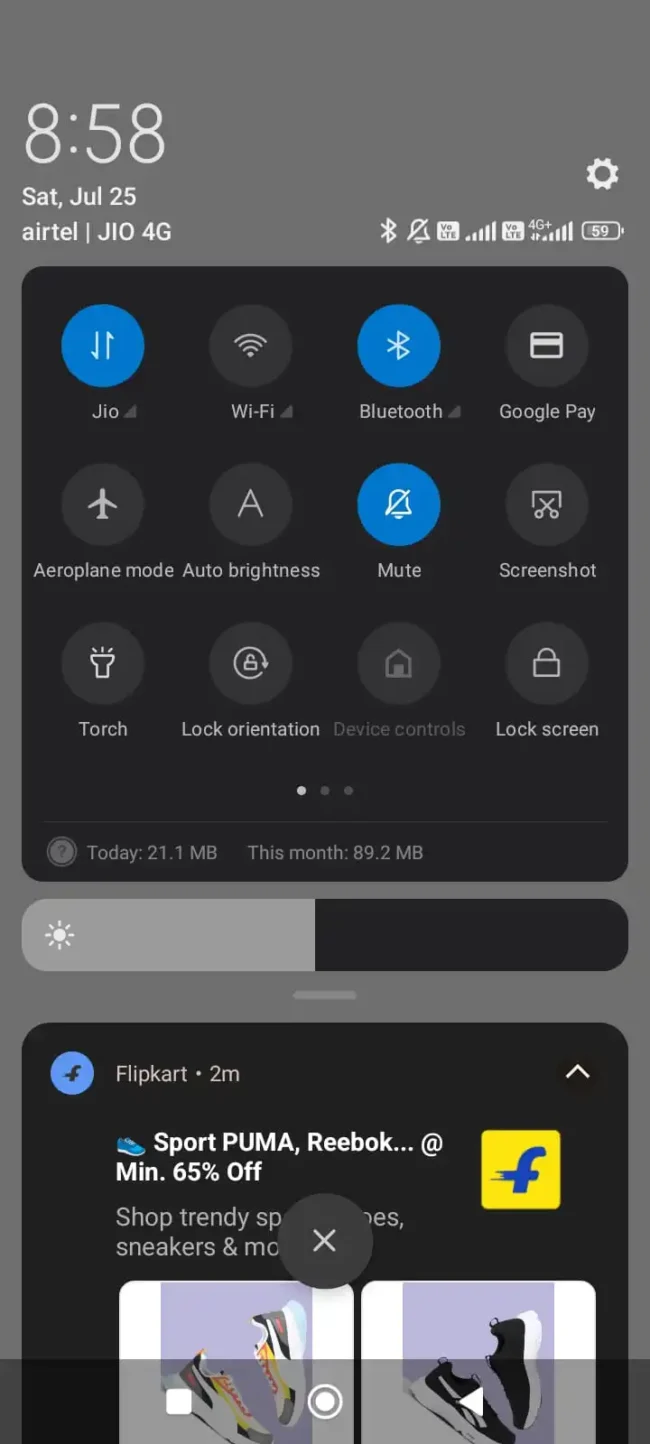
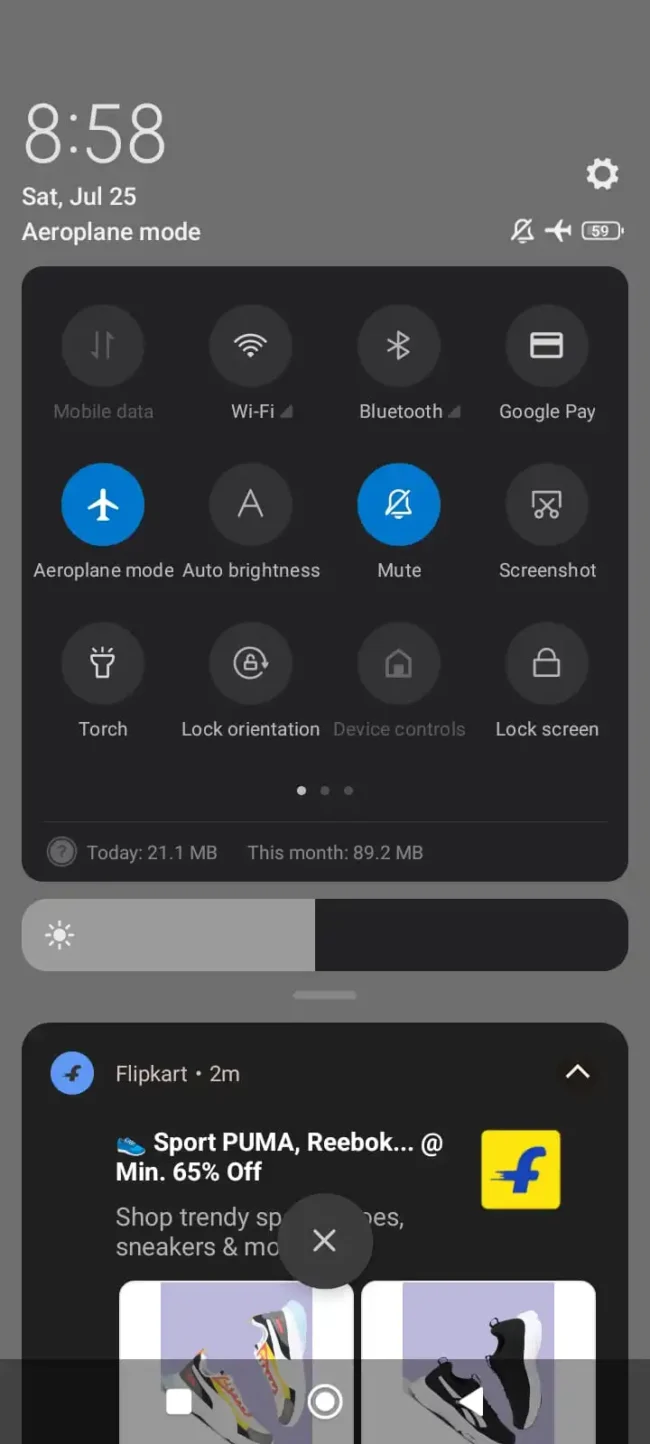
2. If you are on mobile data: Turn on Airplane mode for 15 seconds, then turn it off. This will force your mobile carrier to assign a brand new dynamic IP address to your smartphone.
2. Clear App Cache & Data
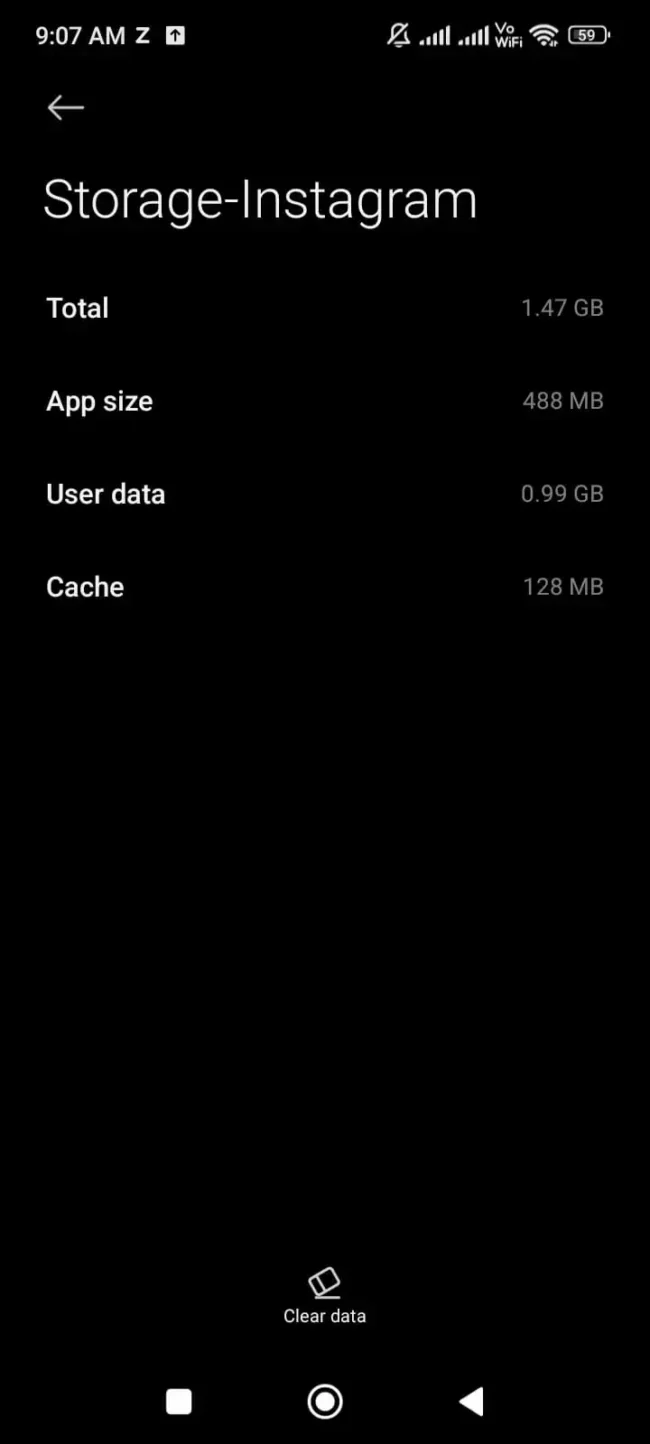
1. On Android: Go to Settings then Apps or manage Apps, now select Instagram and Storage, now tap Clear Cache (do not tap Clear Data if you don’t know your password!).
2. On iPhone: Go to Settings and General then iPhone Storage, now click on Instagram and tap Offload App, then reinstall it directly from the Apple App Store.
Revoke Background Tokens & Invalidate Session OAuth
In many cases, users are plagued by a “try again later” pop-up because an old analytics tool, unfollow tracker, or automated web viewer is silently sending background API calls to Meta’s servers behind the scenes.
Even if you are not actively using your phone, those background requests will break Meta’s hourly rate limits.
How to force log off all background sessions:
1. Open Instagram, tap your profile picture in the bottom right, and go to Settings and Privacy.
2. Open the Meta Account Center and select Password & Security.
3. Tap Change password and update your login credentials.

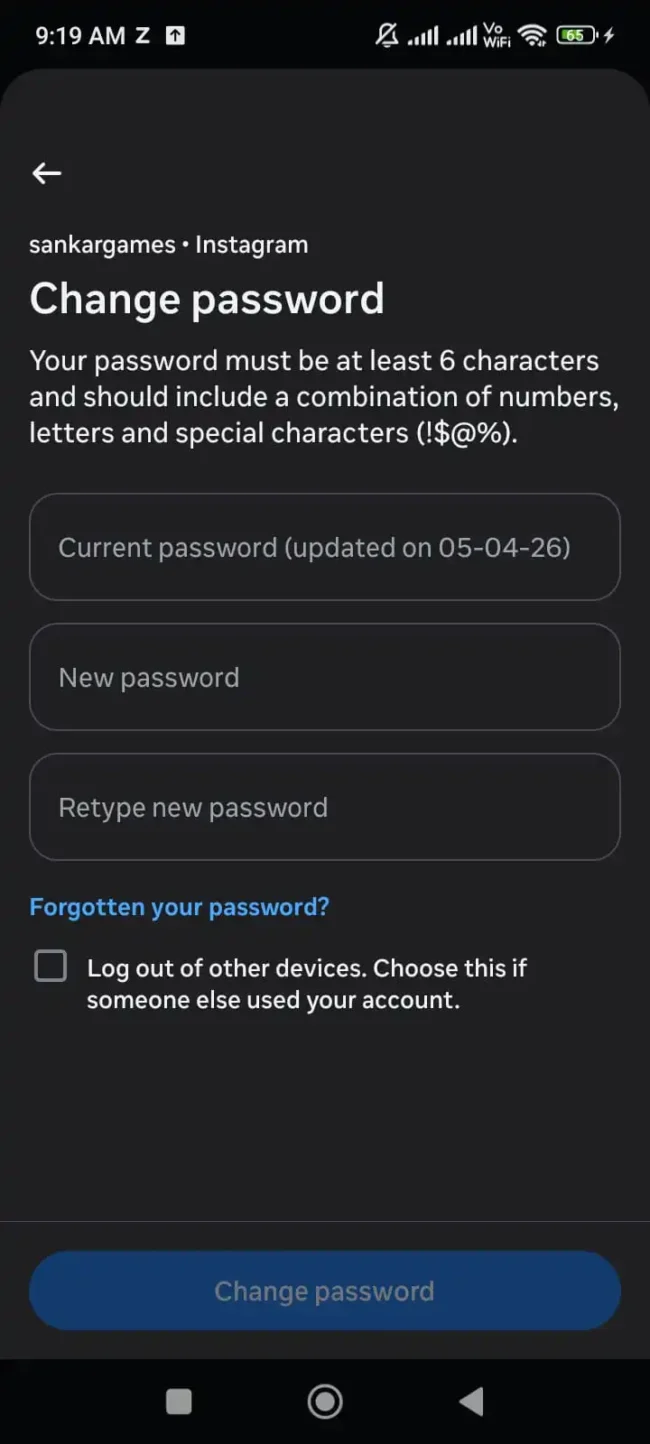
Why it works: Changing your account password immediately revokes all active OAuth tokens, logs out unrecognized devices, and terminates any background web extensions that may be making unauthorized calls in your name.
For complete instructions on managing connected web extensions on desktop, read the official guide on the Instagram website permissions dashboard.
Instagram Try Again Later Error Fix: Execute the 24-Hour “Cooling-Off” Protocol
The single biggest mistake people make when trying to apply the ‘Try again later’ error fix on Instagram is constantly tapping the “Like” or “Comment” button every 10 minutes to check if the block is gone.
Every attempt made while the block is active sends a failed server ping to Meta’s system, which can extend a simple 24-hour temporary hold to a 7-day or 14-day account ban.
Secure unblocking protocol:
1. Log out completely: Log out of Instagram on your phone, tablet, and desktop browsers.
2. Wait 24 to 48 hours: Completely deactivate the account. Do not attempt to log in or conduct third-party verifications.
3. Test on mobile web first: After 24 hours, open a mobile web browser (like Chrome or Safari) in incognito mode and log in to instagram.com. If you can like the post on the web without warnings, the block is removed and you can safely return to the app!
Instagram Try Again Later Error Fix Quick Troubleshooting Matrix: Action Blocks vs. Suspensions
| Issue Type | Main Cause | Duration | Best Solution |
| “Try Again Later” Popup | High hourly activity or background API calls. | 24 – 48 Hours | Switch IP, clear cache, wait 24h. |
| “Action Blocked” Error | Repeated policy triggers or comment spam. | 3 to 7 Days | Password reset + revoke app access. |
| Account Suspended Screen | Unverified device logins or update bugs. | Indefinite until appealed | Submit video selfie or appeal form. |
Frequently Asked Questions (FAQ’s) Of Instagram Try Again Later Error Fix
How long does the “try again later” limit last?
Most temporary action limits will automatically expire within 24 to 48 hours. However, if you continue to spam buttons or keep third party tracking apps connected, the restriction can be extended to 7 days.
Does pressing the “Tell us” button help remove the error?
Yes. Tapping “Tell us” will send an automatic report to Meta’s automated moderation engine, signaling that a real person triggered the pop up in error.

Why did I get this error when I rarely use Instagram?
If you rarely interact on Instagram and still receive this warning, an active background app, VPN service, or compromised account token is sending requests without your knowledge.
Conclusion
Getting hit with a rate limit popup may feel like a sudden lock out, but it’s Meta’s system taking precautions. By clearing your local cache, obtaining a new dynamic IP address, revoking active session tokens, and respecting the 24-hour cooling off window, you can perform an effective Instagram Try Again Later Error Fix troubleshooting and then try again and restore full access to your profile.
More Instagram fixing guides on Apkiraa:
Did your identity verification fail? Follow our step-by-step solution to Instagram video selfie verification failure.
Lockout caused by background connections? Learn how to remove connected apps and fix API background locks.

COMMENTS