

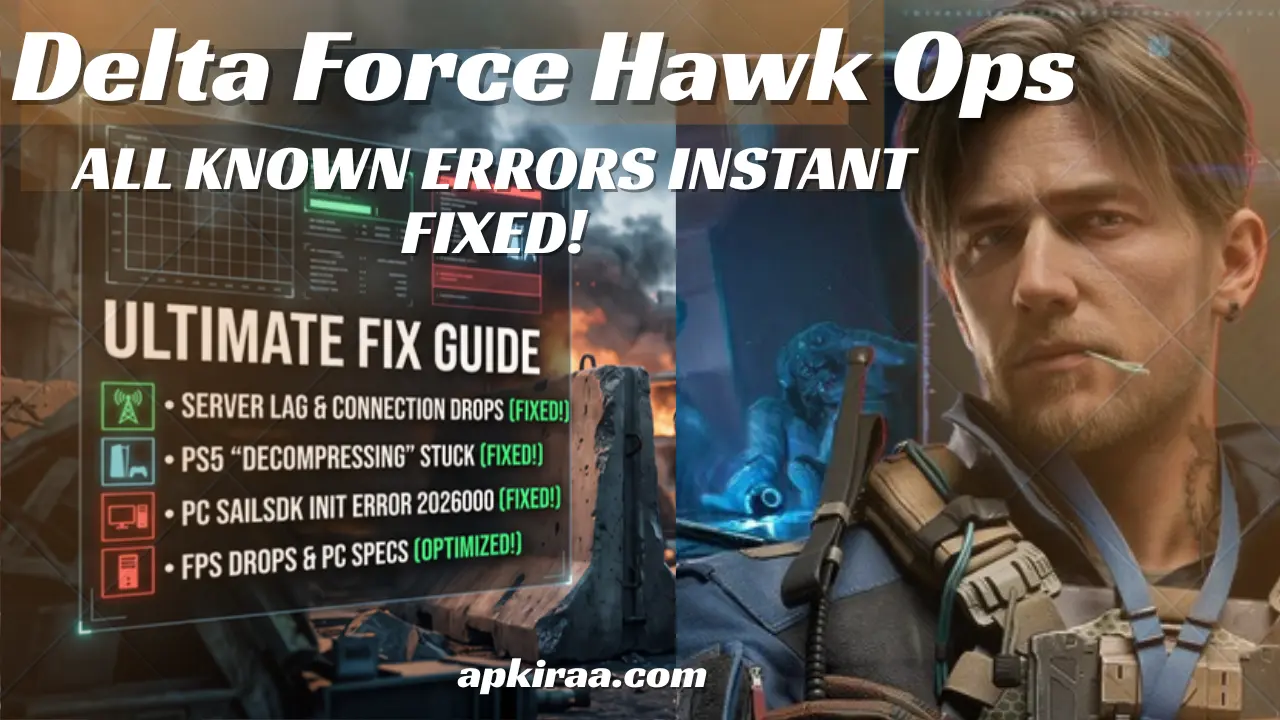
If you are trying to get into the tactical trenches of this intense shooter, you already know that combat is awesome. But let's be completely real fo
If you are trying to get into the tactical trenches of this intense shooter, you already know that combat is awesome. But let’s be completely real for a moment. Nothing kills your gaming vibe faster than assembling your team on Discord, getting hyped for an extraction run, and then hitting a brutal wall of launch failures or infinite loading cycles.
I had a similar disappointment last night. I cleared my evening schedule, updated my graphics drivers, and opened the launcher, but was hit with a sudden desktop crash before I could even see the main menu login window. It’s incredibly annoying to spend your limited free time troubleshooting forum threads instead of actually playing. Since many players across PC, consoles, and handhelds are experiencing similar issues, I decided to compile a definitive master tracker for all Delta Force Hawk Ops Known Errors to save me hours of headaches.
Since the new optimization patches came out, server capabilities have been pushed to their absolute limits, causing a ripple effect of network drops and authentication errors. Whether you are dealing with administrative restrictions on a high end desktop rig or optimization lag and Delta Force Mobile bugs on your smartphone, you don’t have to feel like you need a degree in computer software development to run a tactical video game. Below, we will explain each major bug that can ruin the game, explain in plain and simple language why it’s happening and give you direct ways to get past the title screen.
📱 Game Fixed? Join Our Community For Daily Error Fixes & APK Updates!
Delta Force Hawk Ops Known Errors: Live Error Status Grid
Before we delve into the in depth fixes, here is a quick look at the status panel for the most disruptive Delta Force Hawk operations known bugs currently being seen in the community. Use this to quickly identify whether your issue is a known developer side issue or a local bug that you can fix yourself.
| Error Category & Code | Affected Platforms | What it Looks Like | Current Live Status |
| Server Routing Drop | PC / Android / iOS | “Connection Failed” / Network Timeout | Active (Server Congestion) |
| Resource Loop | PlayStation 5 | Frozen at “Decompressing Resource Files” | Resolved (Requires Local Cache Clear) |
| Error Code 2026000 | PC (Steam & Launcher) | “SailSDK Init Failed” Desktop Crash | Active (Admin/Permission Lock) |
| DirectX 12 / Shader Crash | PC / High-End Laptops | “Out of Video Memory” or Sudden Black Screen | Active (Driver Conflict) |
Delta Force Hawk Ops Known Errors: Platform System Requirements Breakdown (PC & Mobile)
Sudden Delta Force Mobile errors and PC desktop crashes occur because the game’s massive tactical engine overwhelms your system hardware. If your hardware is suffocating below the minimum specifications, it will cause massive data interruptions that trigger these error screens.
Before changing your internal Operating System settings, cross reference your current device specifications with the official parameters below.
PC Hardware Specifications For Delta Force Hawk Ops Known Errors
1. Minimum requirements (720p / 30 FPS): Intel Core i5-4460 / AMD FX-8350, 16 GB RAM, NVIDIA GeForce GTX 960 / AMD R9 380, DirectX 12.
2. Recommended specifications (1080p / 60 FPS): Intel Core i7-8700K / AMD Ryzen 7 2700X, 16 GB RAM, NVIDIA RTX 2060 / AMD RX 5700 XT.
3. Required storage space: At least 50 GB available space (SSD highly recommended for loading speed).
Mobile Device Requirements (Android & iOS) For Delta Force Hawk Ops Known Errors
1. Android minimum: Snapdragon 845 / Dimensity 1000 or higher, 6 GB RAM, Android 9.0 OS.
2. iOS minimum: iPhone 11 or newer, A13 Bionic chip or better, 6 GB RAM, iOS 14 or higher.

Pro-tip for mobile users: If your phone meets these requirements but you are still experiencing heavy lag or app crashes constantly, check out our comprehensive universal guide on how to stop mobile games from crashing to clear hidden app caches and free up deep system memory.
In-Depth Structural Fix Modules For Delta Force Hawk Ops Known Errors
1. Fix for “Connection Failed” & High Server Lag
This is the most widespread problem plaguing the tactical shooter in Peak Player windows.You try to boot past the title screen, or you are in the middle of a large extraction and the game suddenly locks up with a “Connection Failed” or server timeout prompt. This happens when regional servers become overloaded or your local ISP drops secure data packets during the game’s strict anti-cheat verification handshake.
How to Troubleshoot it Step-by-Step:
1. Power cycle your network: Unplug your modem and router for 30 seconds, then plug them back in to clear corrupted DNS caches.
2. Whitelist the game client: Open your Windows Defender Firewall settings, click “Allow an app through the firewall,” and make sure both the game’s executable file and launcher are fully checked.
3. Switch to a wired connection: If you are playing on a PC or laptop, switch from Wi-Fi to an Ethernet cable to stop packet loss.
4. Use a gaming VPN: If your local ISP routing path to the regional server is congested, using an optimized gaming network routing tool can completely bypass the broken data path.
Are disconnections completely ruining your extraction runs? Read our dedicated, in-depth walkthrough on how to fix Delta Force connection failures and server lag to completely stabilize your ping and optimize your network adapters.
2. Fix for PS5 Stuck on “Decompressing Resource Files”
Console players are hitting a brutal wall even before they see the main intro cinematic. When launching the game on PlayStation 5, the loading bar freezes hard while trying to decompress the game’s assets, usually at 0% or 99%. No matter how long you leave the console running, the loading wheel spins endlessly.
How to Troubleshoot it Step-by-Step:
1. Close the game completely: Press the PlayStation button on your DualSense controller, highlight the game card, and select “Close Game.”
2. Go to Storage Settings: Go to the PS5 Home Dashboard, click the gear icon (Settings) then Storage and Saved Data.
3. Select a game profile: Locate Tactical Shooter in your PS5 console collection list.

4. Delete local configuration file: Delete the small 98MB local system configuration file. Don’t worry, your character profile, unlocked weapons, and game progress are safely saved on the game’s cloud servers.
5. Restart the console: Reboot your PlayStation 5 and launch the game. This will immediately bypass the faulty asset check and take you straight to the main menu.
Stuck in an infinite loading loop? Check out our dedicated console repair guide, Delta Force PS5 stuck on decompressing resource files, to break the freeze cycle in two minutes.
3. PC Launcher Crash: Error Code 2026000 (SailSDK Init Failed)
For desktop mouse and keyboard players, this is the ultimate hurdle. If you press the “Play” button on Steam or the standalone client, a black game window will pop up for a moment and then it will immediately crash to your desktop with a cryptic notification box reading: SailSDK Init Failed (Error Code 2026000). This means that the engine’s core SDK or anti-cheat system has failed to initialize due to strict Windows system permission restrictions.
How to Troubleshoot it Step-by-Step:
1. Run as administrator: Right click on your desktop launcher icon (or Steam shortcut), select Properties, go to the Compatibility tab, check the “Run this program as an administrator” box, and press Apply.
2. Verify Steam File Integrity: If you’re playing on Steam, open your library, right-click on the game name, select Properties -> Installed Files, and click “Verify Integrity of Game Files.” This will automatically re-download any corrupted SailSDK components.
3. Close overlapping software: Turn off background overlays such as RivaTuner Statistics Server, MSI Afterburner, or Discord Overlay, as their hooks often conflict with the game’s safe launcher startup.
Let’s clean up your broken SDK components: Open our step-by-step tutorial on how to fix Delta Force error code 2026000 to instantly fix your PC launcher configurations.
If you are having issues even before reaching the main menu on the console, check out our step-by-step walkthrough to instantly resolve Delta Force PS5 stuck in decompressing loop.
How to Report an Unknown Bug to the Developers
Sometimes, you may encounter an unusual system crash or an unlisted error code that has not yet been widely documented by the community. When this happens, reporting the data parameters directly to the game’s engineering team is the absolute best way to ensure that it is patched in the next client build.
Step-by-step reporting instructions:
1. Take a quick screenshot: As soon as an error code or crash message window flashes on your screen, take a quick screenshot. Having an accurate visual block of text can help technical support isolate the faulty database node immediately.

2. Access official channels: You can connect directly with the specialized engineering support team through the official Delta Force Player Support Portal.
3. Use a dedicated support email: For massive game breaking launch glitches or account access blocks, you can compose a clear detailed message specifying your device type, operating system version, and regional region and send it directly to their support inbox at service@playdeltaforce.com.
4. Utilize Discord Ticketing: Join the official community Discord channel and navigate to the dedicated bug-reporting section to log glitch parameters alongside other active operators.
Frequently Asked Questions (FAQ’s) About Delta Force Hawk Ops Known Errors
Why does the client keep giving me a connection timeout warning?
This error is typically triggered when regional data servers are overloaded during peak traffic windows or when the local ISP drops critical security handshake packets. Adding an exception for the game application within your Windows Firewall settings or switching to a stable Ethernet cable usually resolves this communication bottleneck.
Will clearing my local save files erase my unlocked gear or level progress?
Of course not. Your custom character builds, unlocked cosmetic items, level milestones, and operational inventory data are stored securely on remote cloud networks. Clearing a corrupted local save file profile will force your console platform to recalculate the original visual preferences, which will instantly bypass infinite loading loops.
What exactly triggers the SailSDK Init Failed error code on my PC?
The error code 2026000 (SailSDK Init Failed) window occurs when the Foundational Application Launcher or Anti-Cheat File System is severely restricted by strict administrative restrictions within Windows. This initial barrier stops the execution of a standalone executable client file or Steam by forcing it to open with full elevated administrative permissions.
Are mobile system errors completely different from those on the PC version?
Yes, they are caused by completely different system bottlenecks. Desktop errors are almost always related to background driver conflicts, firewall rules, or system permission blocks, while mobile errors are primarily caused by severe device overheating, system RAM restrictions, or corrupted visual graphics caches.
Conclusion
Delta Force Hawk Ops Known Errors: Slogging through unexpected performance hiccups and system error windows when you are ready to go into an active tactical session can be undeniably frustrating. However, once you have isolated whether the root issue is caused by an administrative permission block, a regional network drop, or a corrupted local storage file, cracking the main launcher block becomes incredibly simple. By taking a few brief moments to update your administrative permissions, refresh your local cache data, and keep your core hardware operating lines tidy, you can return to the battlefield without any hassle.
Be sure to bookmark this central tracker page in your browser toolbar. Our dedicated technical optimization team at apkiraa.com constantly monitors community locations and updates this live blueprint as soon as engineering teams roll out formal patch modifications or new community tested fix paths are discovered.

COMMENTS