

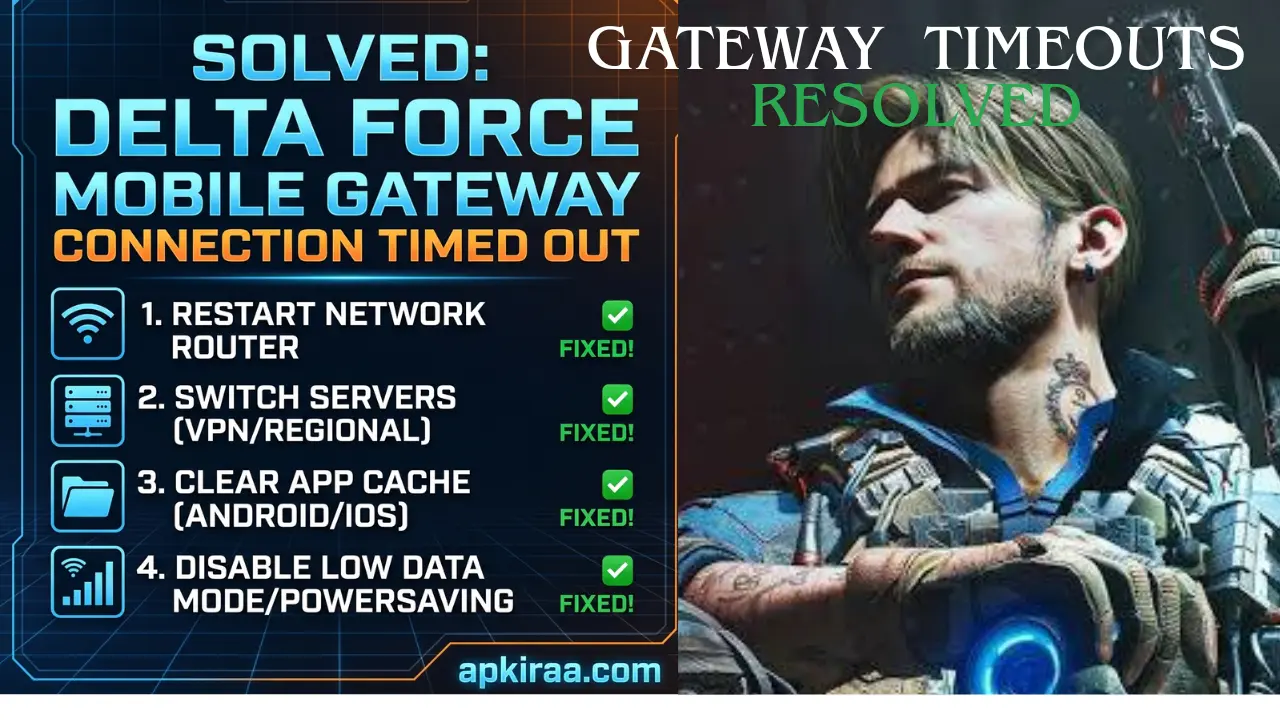
There's nothing worse than spending an hour of your busy day engaging in intense tactical matches with your team, booting up your phone, and getting
There’s nothing worse than spending an hour of your busy day engaging in intense tactical matches with your team, booting up your phone, and getting hit in the face by a frozen loading screen. As an avid mobile gamer, I have been there, you are sitting there watching the progress bar spin, waiting for the main lobby to load, only to be met with a frustrating network error pop up.
Recently, a large number of players accessing the servers have run straight into the same brick wall, the dreaded Delta Force Mobile Gateway Connection Timed Out error.
When this error occurs, the game application fails to establish a secure, high speed handshake with the regional login gateway servers. Instead of pulling your profile data, it loops until the network request is fully completed. If you are also experiencing desktop setup crashes or broader system hitches on other platforms, bookmark our comprehensive master directory that tracks the Delta Force Hawk Ops known error troubleshooting manual to keep your entire game library running smoothly.
📱 Game Fixed? Join Our Community For Daily Error Fixes & APK Updates!
Through my own trial and error in overcoming this particular network block on both Android and iOS devices, I found that you don’t have to wait for a server patch. This issue is almost always caused by local DNS caching errors, strict IP routing protocols, or hidden background power saving restrictions. Let’s dive right into the quick, field tested steps I used to fix the Delta Force Mobile Gateway connection timeout error so you can overcome the obstacle and get back to the battlefield.
Quick Fix Troubleshooting Summary
Before diving into the deeper network settings, here’s a quick explanation of field-tested methods for successfully bypassing a login loop.
| Step | Troubleshooting Action | Estimated Time | Success Rate |
| 1 | Toggle AirPlane Mode & Network Refresh | 30 Seconds | High |
| 2 | Wipe App Cache Data | 1 Minute | Very High |
| 3 | Shift to Alternative Network / DNS Setup | 2 Minutes | Critical |
| 4 | Disable System Battery / Data Savers | 1 Minute | Medium |
Step-by-Step How to Fix Delta Force Mobile Gateway Connection Timed Out Error
1. Execute a Hard Network Flush & IP Renewal
When my mobile device gets stuck trying to authorize the login handshake, the first thing I do is force a local network refresh. If your device switches between cell towers or drops data packets, the game client’s connection state will be broken, triggering an error message that the Delta Force Mobile Gateway connection timed out.
Action: Close the game app completely from your recent apps drawer. Swipe down your control panel, turn on Airplane Mode, and wait exactly 15 seconds.

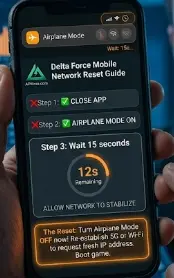
Reset: Turn Airplane Mode back off, allow your 5G or Wi-Fi network icon to stabilize completely, and back up the game. This will force your mobile hardware to request a completely new IP address from your local provider.
2. Clear Corrupted App Cache Files (Android & iOS)
If a minor network outage occurs while the game is getting a minor live backend patch, the app will store a broken system file in its directory. After that, every time you start the game, it will read that broken temporary file and run straight into an infinite Delta Force Mobile Gateway connection timeout loop.
For Android users: Long press the game icon on your home screen, tap App info, go to Storage, and tap Clear cache (do not tap Clear data unless you want to re-download all game assets).
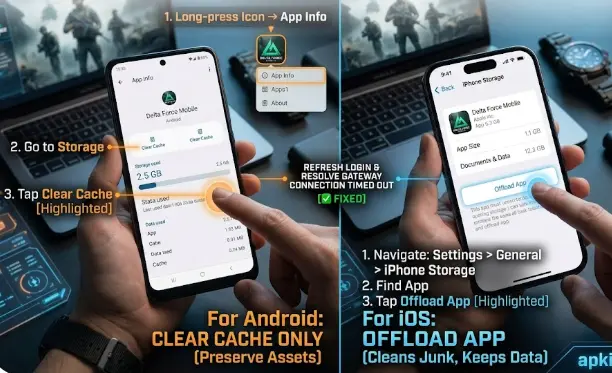
For iOS users: Since iOS handles cache differently, you need to go to Settings, General, select iPhone Storage, find the game app, and select Offload App. This will safely preserve your important user credentials as well as clean up temporary system junk.
Note: Just as storage restrictions can cause Delta Force PS5 to get stuck in a decompression error on consoles, hidden mobile file clutter can break your initialization loops on smartphones.
3. Switch to Google DNS or an Open Gateway Route
If your local Internet Service Provider (ISP) uses strict firewall routing policies, it may accidentally block the game’s specific login gateway IP address. When your app tries to ping that hidden server, it will be completely ignored, resulting in a persistent Delta Force Mobile Gateway connection timed out notification.
Solution: Go to your device’s Wi-Fi settings, select your connected network, and look for Configure DNS or Private DNS.

Values: Change the setting from Automatic to Manual and enter Google’s most trusted public DNS addresses: 8.8.8.8 and 8.8.4.4. You can check the official Google Public DNS setup guide for comprehensive device specific installation details.
If you are changing network routes and still noticing login drops, double check your master game profile using our Delta Force Connection Failed Error Guide to ensure that the game servers are not undergoing standard database maintenance.
4. Lift Background Data & Power Restrictions
Modern operating systems are incredibly aggressive when it comes to saving battery life. If your phone decides to cut power to your wireless antenna the moment a heavy loading screen starts, your game data streams will immediately drop and the system will give a crash warning that the Delta Force Mobile Gateway connection has timed out.
Adjustment: Go to your main mobile battery settings and make sure that power saving mode or low power mode is completely turned off.
Permission: Go back to the game’s app information permissions and make sure that Background Data Usage and Unrestricted Data Access are explicitly turned on. This will ensure that your phone gives the multiplayer client full, unrestricted network hardware priority.
Frequently Asked Questions (FAQ’s)
Can using a VPN fix the Delta Force Mobile Gateway connection timeout error?
Yes, in many cases it is possible. If your local internet provider or mobile carrier is routing your data traffic through a congested or restricted server path, turning on a high quality gaming VPN can completely bypass that bottleneck. By changing your virtual location to a nearby region, you force the game client to try a completely different login gateway, which often clears up the timeout error immediately.
Why does gateway timeout occur even on a fast 5G connection?
Having raw download speeds doesn’t always guarantee a stable connection. A fast 5G link can still experience jitter or rapid packet loss if you’re moving between cell towers or inside a building with interference. Since multiplayer authentication requires a continuous, perfect data handshake, even a split second drop can trigger a Delta Force Mobile Gateway connection timeout error.

Will clearing the mobile app cache erase my characters or ranking progress?
Of course not. Your profile data, operators, weapon unlocks, and premium items are completely tied to your cloud account data backend. Clearing the mobile cache only flushes out temporary graphical assets and volatile network files stored on your local phone storage, meaning your game account remains 100% safe.
Conclusion
Being blocked by an endless gateway synchronization screen when you’re gearing up for a clean competitive race can be incredibly annoying. However, by understanding how local DNS caching, power limits, and network configurations interact with your phone’s wireless chips, you can easily take control of the situation. Clearing your device’s cache, checking system background permissions, and forcing a clean IP routing change will get you out of the login loop.
If you have fixed your gateway routing but are experiencing sudden server lag, ping spikes, or matchmaking dropouts after reaching the main lobby, be sure to head over to our dedicated Delta Force Connection Failure Error Guide to optimize your in game performance. For direct hardware issues, asset errors, or developer support tickets, you can also check out the official Delta Force Player Support Portal.

COMMENTS