

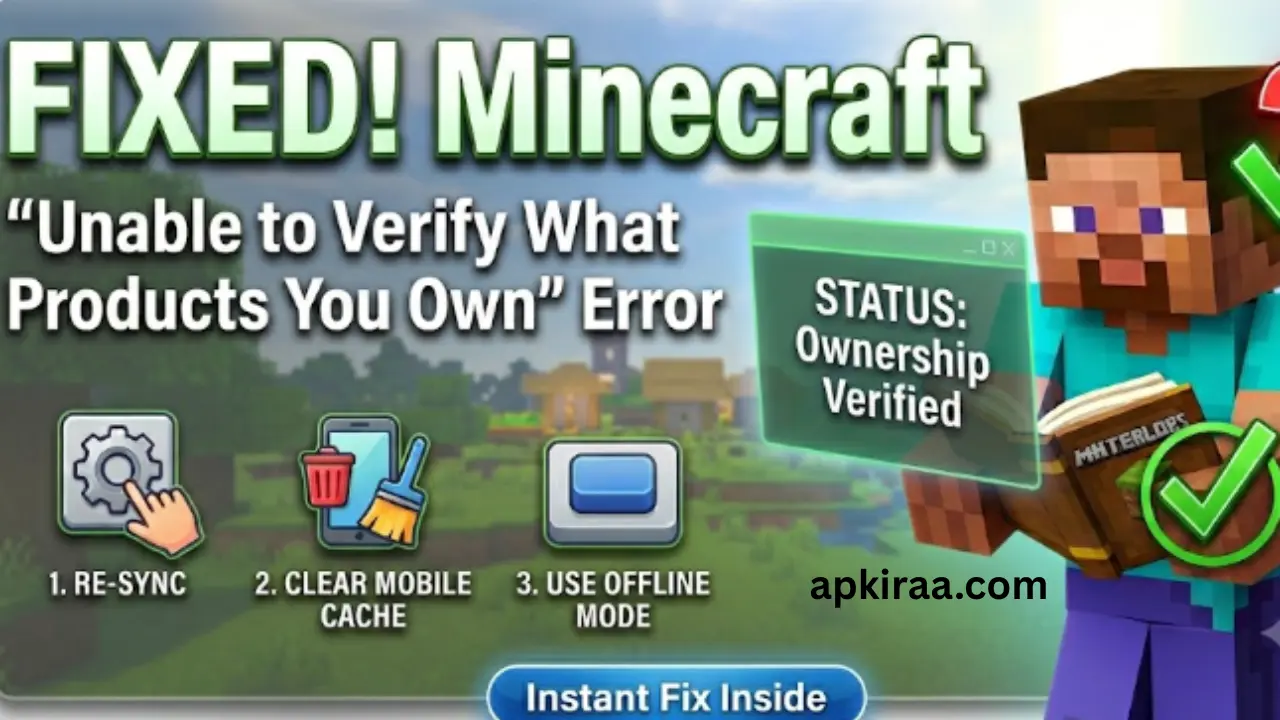
It is incredibly frustrating to sit down for a quick gaming session, open your favourite world and get a random pop-up telling you that your in game
It is incredibly frustrating to sit down for a quick gaming session, open your favourite world and get a random pop-up telling you that your in game purchases don’t exist. If you have opened the game today and seen a screen that says “Minecraft unable to verify what products you own,” or if you have been stuck loading into the server with a Realms Error 502, you are not the only one facing this mess.
This particular bug is affecting millions of players who use Bedrock and Java versions simultaneously on phones, consoles, and PCs. When a warning like this comes up, it naturally makes you jump to the worst possible conclusion. Like, wondering if your paid account has been deleted or if your hard earned premium market items will vanish into thin air.
Take a deep breath, your account is completely safe. This usually happens when Microsoft’s background verification systems encounter a major bottleneck. Which you can easily track on the official Mojang status profile. If your device is having trouble refreshing your login profiles, this step-by-step guide will tell you exactly why your game is saying ““Minecraft unable to verify what products you own,” and show you simple, real world ways to force the system to reload your profile.
📱 Game Fixed? Join Our Community For Daily Error Fixes & APK Updates!
By the way, if you are experiencing mobile setup crashes in other major survival titles this week, be sure to read our comprehensive [PalWorld Mobile APK Truth Guide] to clean up your system installer folders.
Quick-Reference Troubleshooting Matrix
| Affected Platform | Immediate Error Symptom | Recommended Quick Solution |
| Android / iOS | Verification alert on main menu | Clear local app storage cache |
| Windows PC | Launcher fails validation loop | Flush system DNS & reset network tables |
| Xbox / PlayStation | Realms Error 502 Bad Gateway | Hard sign-out of Microsoft Account profile |
What Causes the Minecraft “Unable to Verify What Products You Own” Error?
When you buy a game, you expect it to work. So when your screen suddenly flashes a message saying “Minecraft unable to verify what products you own”, it’s easy to assume that something is terribly wrong with your purchase and you may get panic. Whether it is a buggy Minecraft launcher that can’t check what products you have on your PC or a sudden connection drop on your Android device, the whole problem usually comes down to a simple communication breakdown.
If you are trying to figure out why the Game Launcher is losing its validation data, it helps to understand how the system checks your profile behind the scenes. Here are three main technical reasons why Minecraft might not be able to verify the notification of what products you own are listed below.

1. Microsoft Azure backend outages: Before loading your premium profile data or marketplace items, the game runs a quick hidden check against central servers. When Microsoft’s identity networks crash or hit a major routing snag, your game client can’t pull your digital receipt and instead issues a security warning.
2. Corrupted local token cache: Actually, Your phone or PC stores small temporary credential files so that it doesn’t have to search online for your proprietary license every second. If your game closes unexpectedly or your internet goes down during a loading screen, these local files can become corrupted and fail to read properly.
3. Account sync and profile conflicts: If your device is logged into multiple profiles or you have recently changed your main Microsoft security settings, the launcher may accidentally try to verify your licenses using an unlinked or empty secondary account profile.
How to Fix Minecraft Unable to Verify What Products You Own Error?
If you are currently stuck on an error screen like “Minecraft unable to verify what products you own, you don’t have to sit around waiting for Microsoft to fix its backend networks. Most of the time, you can get back to your worlds by forcing your device to refresh its connection cache.
Here are the simplest and most effective ways to clear Minecraft that can’t check which products you have faulty on mobile or PC are given below.
1. Log out and refresh your profile: This is the fastest way to fix a frozen identity layer. Go to the in game settings, tap Account, and log out of your Microsoft profile completely. Now, Close the app, “reopen” it, and sign back in. This will force the system to pull a fresh copy of your digital license from the server. If you are having trouble signing back in, you can check the official Xbox Live status page to make sure their profile and login servers are fully operational.
2. Clear your app storage cache (Android and iOS): If your phone is holding corrupt temporary data files, it could be blocking your login. On an Android device, go to Settings and navigate to Apps, from here find Minecraft and go to Storage and tap “Clear Cache“. If you’re using an iPhone or iPad, a quick system “restart” will usually do the trick.
3. Force start in offline mode: If the master servers are not fully functional and you want to play your single player maps, disconnect your device from your Wi-Fi or mobile data before opening the game. Since there is no internet connection, the game will completely skip the broken verification handshake and allow you to play safely offline.
Frequently Asked Questions(FAQ’S)
When your screen locks you, it’s natural to have few urgent questions about Minecraft Unable to Verify What Products You Own. Here are quick answers to what most players are looking for right now.
Why does it say you can’t check what products you have in Minecraft?
This usually means that your game app can’t talk to Microsoft’s security databases. This can happen during a widespread server outage, when your local device is holding old, corrupted login files, or when your app accidentally logs in to the wrong account profile.
Will I lose my world or market purchases if I get this error?
No, you won’t lose anything. All your custom worlds, texture packs, skin sets, and Minecoins are safely saved in your main Microsoft profile. This error is a temporary roadblock that prevents the game from reading your profile, so your data is completely safe.
What causes the game launcher to lose connection to authentication servers?
The launcher may lose track of your login session due to a weak internet connection, firewall interference on your computer, or an unexpected application crash. Completely signing out of the application and signing back in will force the error to clear.

Final thoughts: Getting back into the game
Dealing with unexpected licensing errors is never fun, especially when you know you bought the game legitimately. Remember that a notification that Minecraft Unable to Verify What Products You Own is always a temporary backend server error, not a permanent problem with your personal save files.
By reviewing quick account sign out routines and clearing your device’s hidden cache files, you can easily bypass system blocks and get back to building. Keep an eye on regional server status updates and enjoy returning to your favorite sandbox worlds.
Launcher data conflicts and missing core updates can ruin your gaming session. If you are moving from Minecraft to Solaris-3, make sure your system is in tip-top shape. Read our step-by-step tutorial on [How to Fix Wuthering Waves Crashing and UE4 Errors].

COMMENTS