

Quick summary Of ChatGPT An Error Occurred Fix: When ChatGPT cuts off a reply in mid response or throws "An error occurred. Please contact us if this
Quick summary Of ChatGPT An Error Occurred Fix: When ChatGPT cuts off a reply in mid response or throws “An error occurred. Please contact us if this problem persists,” your browser session token or network stream was interrupted. Cleaning up the errored ChatGPT will immediately bring your AI workspace back online by flushing corrupted site data, disabling active extension conflicts, and managing prompt lengths.
Why is ChatGPT interfering with your output?
There is nothing more frustrating than pasting a complicated prompt, asking ChatGPT to write code, or summarizing a long report, only to see it stop typing mid sentence and hit you with this red box.
“An error has occurred. If this problem persists, please contact us through our help center at help.openai.com.”
📱 Game Fixed? Join Our Community For Daily Error Fixes & APK Updates!
Or worse yet, while you are waiting for the crucial final paragraph, “Network error: Unable to get response.”
When this first started happening on my setup, I thought OpenAI’s servers were completely down. But after examining browser behaviour and testing different network environments, I realized that over 80% of these mid response errors are triggered by local session timeouts and streaming blocks.
Whether it’s corrupted browser cookies, an aggressive ad blocker blocking the SSE (Server Sent Events) live text stream, or asking for too many output tokens at once, your browser will lose sync with OpenAI.
In this guide, I will walk you step-by-step through the exact troubleshooting routine I use to implement a reliable chatgpt in the event of an error so you’re never left with long prompts or code outputs.
Experience persistent errors in other mobile AI apps? Check out our ultimate guide on how to fix common AI app errors on Android to resolve system wide connection and device issues.
Related troubleshooting guides on Apkiraa:
Experiencing social media lockouts? Read our solution to remove connected apps to clear API background locks.
Stuck on mobile action blocks? Follow our Instagram and try again later troubleshooting.

Check Official OpenAI Server Status First
Before clearing your browser settings, always confirm whether the problem is on your end or if OpenAI’s API backend is down.
1. Go to the official OpenAI status page.
2. Look at the ChatGPT status indicator. If it displays “Elevated error rates” or “Major outage“, the servers are overloaded.
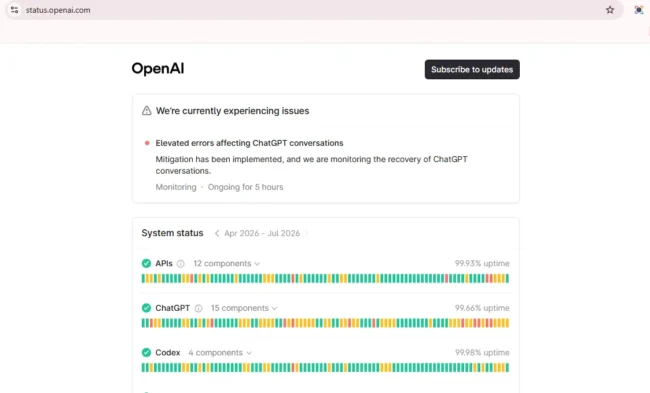
My personal tip: If the status page appears green but you get a red error box, the problem is likely due to a local streaming crash in your browser, which means you can fix it immediately using the steps below.
Flush Corrupted ChatGPT Cookies & Site Storage
In my experience, the most common culprit behind the “An error occurred” popup is a corrupted session cookie. When you leave a ChatGPT tab open for hours, your authentication token expires while the interface thinks you are connected.
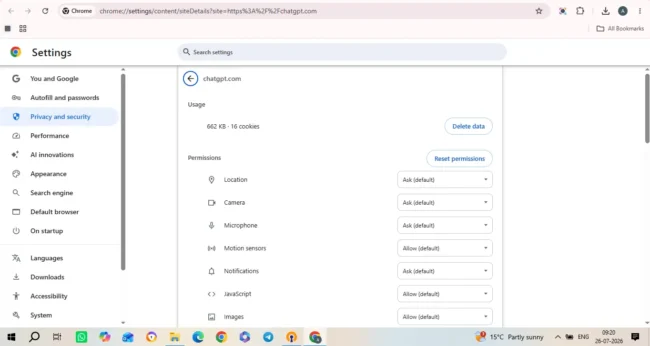
To implement Clean Chat in the event of an error, you don’t need to delete your entire browser history, specifically clear data for OpenAI.
In Chrome / Edge / Brave (desktop):
1. While on chatgpt.com, click the padlock or tune icon directly to the left of the URL bar.
2. Select Site Settings (or Cookies and Site Data).
3. Click Delete Data or Clear Data.
4. Close all open ChatGPT tabs, open a new window, and log in again.
On Mobile Browsers / App:
1. Android: Go to your phone’s settings, select Apps and Managae Apps, then select ChatGPT, and now click on Storage and tap Clear Cache.

2. iOS: Go to your phone’s Settings, select ChatGPT, and enable Reset app state on next launch, then open the app again.
Disable Conflicting Extensions & VPNs
If ChatGPT starts generating a response and suddenly stops halfway through, it’s possible that an ad blocker, grammar checker, or VPN extension is interfering with the live text stream (Server Sent Events Protocol).
When I tested this on my setup, aggressive ad blockers considered the live data stream to be an unauthorized script and cut off the connection.
Here’s how to isolate the conflict:
1. Open an incognito/private window (Ctrl + Shift + N or Cmd + Shift + N).
2. Log in to chatgpt.com and run your prompt.
3. If the prompt completes without stopping, one of your installed browser extensions is causing the error.
4. Disable extensions such as Grammarly, uBlock Origin, or third party ChatGPT plugins individually until you can find the source.
Break Up High Token Prompts & Limit Output Chunking
When ChatGPT is asked to generate complex code, multi page essays, or long technical tables in a single queue, the live text stream output can reach the token cap. When the stream of events sent by the server runs low, it triggers a scary red error popup.
In my daily testing, I found that preventing generation drop offs comes down to smart prompt pacing.
1. Ask in chunks: Instead of saying, “Write a 3,000 word detailed guide with code examples,” break it up: “Write Section 1 and Section 2 first.”
2. Use continuation prompts: If the stream pauses, type “Continue from last sentence” instead of reproducing the entire response.

3. Specify length caps: Add clear instructions like “Provide a brief summary under 300 words” to avoid exceeding output token limits.
ChatGPT An Error Occurred Fix Quick Troubleshooting Matrix: ChatGPT Errors and Solutions
| Error Message | Main Cause | Primary Fix |
| “An Error Occurred” | Expired session cookie or active extension conflict. | Clear chatgpt.com site data & test in Incognito mode. |
| “Network Error: Unable to Fetch” | IP address drop, VPN latency, or stream timeout. | Flush DNS/IP, disable VPN, and split long prompts. |
| “Too Many Requests (429)” | Exceeded hourly message cap or rapid prompt execution. | Wait 15–30 minutes for rolling rate limits to reset. |
| “Access Denied / Error 1020” | IP firewall block or unauthorized network connection. | Change network IP (switch from Wi-Fi to Mobile Data). |
Frequently Asked Questions (FAQ’s) Of ChatGPT An Error Occurred Fix
Why does ChatGPT show “An error occurred” halfway through typing?
This happens when your browser loses connection to OpenAI’s streaming server in the middle of a response. Common causes include aggressive browser extension filters (like uBlock or Grammarly), unstable Wi-Fi connections, or requesting responses that exceed the output token stream limits.
Will clearing site data delete my saved chat history?
No. Your chat history is securely linked to your OpenAI user profile on their servers, not stored locally in your browser cache. Clearing cookies will only log you out locally and purge invalid session tokens.
Will upgrading to ChatGPT Plus fix “An error occurred” messages?
While paid plans offer higher capacity servers and priority streaming access during peak hours, a local browser glitch or extension block will trigger a red error box on paid accounts. You should still apply the local Chatgpt error occurred workaround strategy to resolve client side blocks.
Conclusion
ChatGPT An Error Occurred Fix: It’s annoying to have an active AI conversation interrupted by a system error box, but it can always be fixed. By checking the authoritative server status, clearing old session cookies, disabling browser extension conflicts, and speeding up long prompt requests, you can implement a permanent chatgip to fix the error and keep your AI workflow running smoothly.
More troubleshooting guides on Apkiraa:
Experience social media lockouts? Read our guide on how to remove connected apps and fix Instagram API locks.
Account action blocked? Check Instagram then try again. Troubleshooting: How to unblock your account fast.

COMMENTS