

Are you trying to play the Love Island game, but it keeps freezing? It is very annoying when the game gets stuck on the loading screen at 20%, 50%, or just shows a blank screen.
Don’t worry, You do not need to delete your game and lose your progress at all. Most of the time, this happens because of a small network glitch or full phone storage.
In this guide, I will show you the easiest ways to fix the Love Island game stuck on loading screen error in just a few minutes. Let’s get started.
Love Island Game Stuck on Loading Screen Quick Info Overview
| Problem Details | Information |
| Game Name | Love Island: The Game |
| Common Issue | Stuck on Loading Screen / App Freezing |
| Fix Time Needed | 2 Minutes |
| Success Rate | 100% Working Fixes |
Click the button below to safely download the latest version of the game.
Important Note: Apkiraa.com is not partnered with the official game developers. All guides here are for informational purposes only. Any troubleshooting is done at your own risk, and we are not liable for any lost data or account bans.
If your game is already installed but you are stuck on the loading screen, keep reading below.
Top 4 Ways to Fix the Love Island Game Stuck on Loading Screen
Method 1: Force Stop and Clear App Cache
The most common reason your Love Island game gets stuck is because of very old or broken temporary files. These are called “cache files.” When too much of this junk piles up, the game gets confused and freezes on the loading screen like you are facing now.
Clearing the cache acts like a quick refresh for the app and usually fixes the problem instantly.
Here is exact steps how to do it on your phone.
1. First, open your phone’s Settings.
2. Just tap on “Apps or App Management” (this depends purely on your phone model).
3. Now, Scroll down your list of apps until you find the Love Island game, once you found that, give a click on it.
4.Next, tap the “Force Stop” button to completely close the frozen game.
5.Now, click on “Storage or Storage Usage“.
6.Finally, click the “Clear Cache” button.
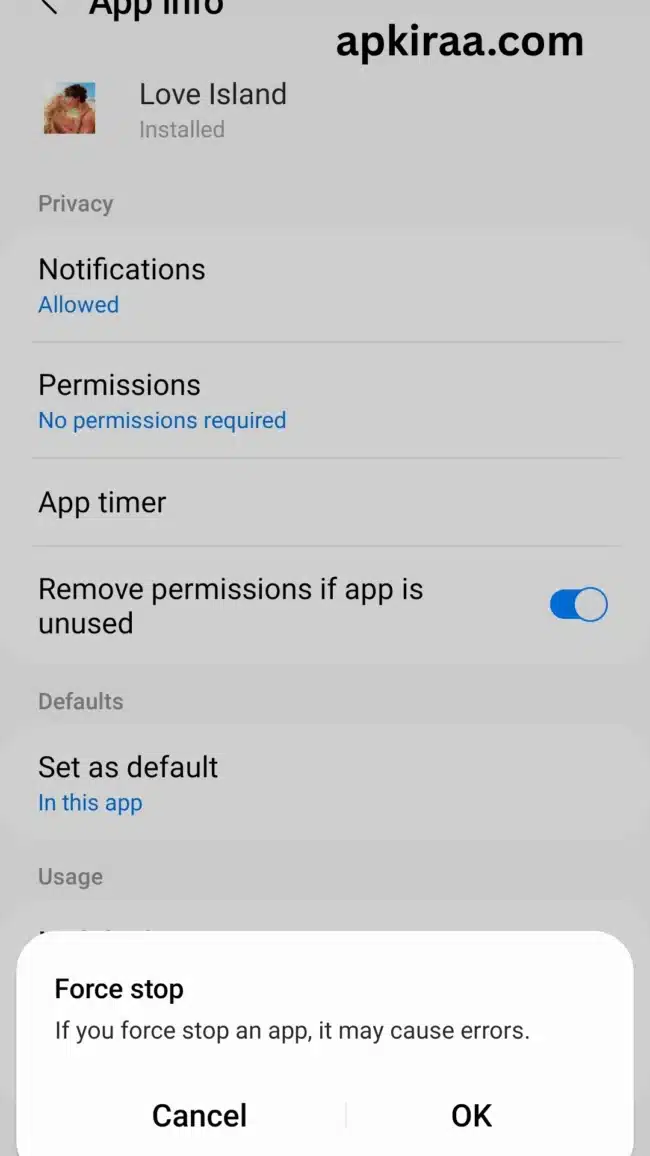
Important Warning: Make sure you only click “Clear Cache button.” Do NOT click “Clear Data.” If you click clear data by mistake, it will delete your account progress so far you maintained it, and you will lose all your saved outfits and story choices.
Method 2: Reset Your Internet Connection
Most of the time, the game gets stuck on the loading screen simply because your internet connection fails for a second. If your Wi-Fi or mobile data is too slow to connect to the game servers, the app will just freeze and wait.
A quick network reset usually fixes this problem right away. Here is what you need to do.
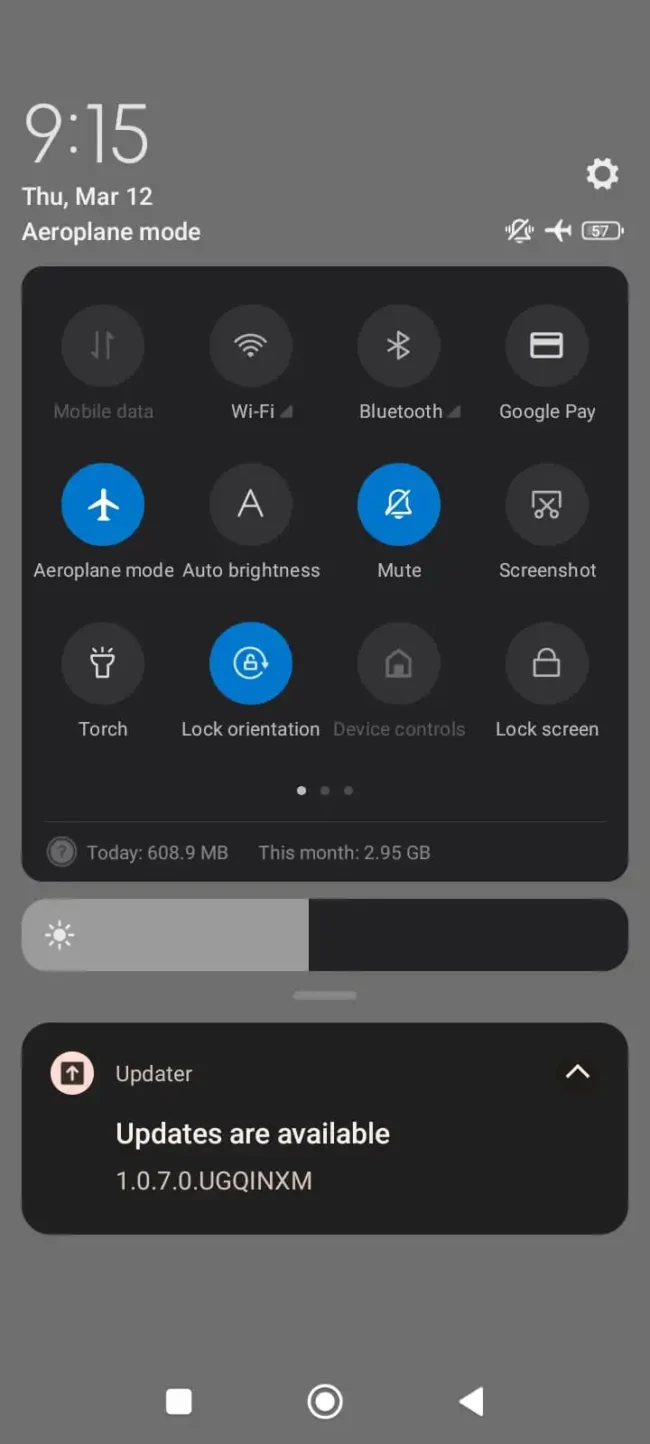
1. Swipe down from the top of your phone screen to open your quick settings.
2. Click on the “Airplane Mode” icon to turn it on.
3. Wait for about 10 to 15 seconds. This completely cuts off all network connections on your phone. At this time you will not receive any calls or messages.
4. Now, tap the “Airplane Mode” icon again to turn it off.
5. It will start reconnect to your Wi-Fi or Mobile Data, so please wait and open the game again.
Bonus Tip: If you are using Wi-Fi at home, try turning it off completely and just using your Mobile Data. Sometimes, the Love Island game servers just don’t like certain Wi-Fi networks.
Method 3: Free Up Phone Storage Space
When you open the Love Island game, it often needs to download new character pictures, outfits, and story episodes in the background. If your phone’s memory is completely full, there is no room for the game to save these new files. When this happens, the game just gives up and gets stuck on the loading screen for that what you need to do is you must maintain some free space.
Giving your phone a little bit of breathing room can fix this immediately. Here is how to check.
1. If you want to maintain some space on your phone, you must open your phone’s Settings.
2. Very next step is, scroll down and look for Storage or Device Care, then click on it.
3. Check to see how much free space you have left.
4. You need to make sure you have at least 1GB or 2GB of free space for the game to run smoothly.
5. And If your phone is completely full, try deleting some old videos, big downloaded files, or other apps you never play anymore.
6. Once you make some space, restart your phone and open the game again.
Method 4: Update the Game to the Latest Version
Most of the time, you are failed to update the latest version, the game developers release a new update to fix bugs or add new characters. If you are playing on an older version of the game, the official servers will not let you log in. The game will just get stuck on the loading screen forever because it is waiting for you to update.
Here is how to make sure you have the newest version.
1. Very first step is, go to Google Play Store (or Apple App Store) on your phone.
2. Then, type “Love Island” into the search bar.
3. Now, Tap on the game when it pops up.
4. Look for a green button that says Update. If you see it, tap it and wait for the download to finish.
5. At last, If the button just says “Play,” then your game is already up to date.
Need help installing or updating? If your app store is acting up, or you need a step-by-step guide on how to install the game correctly, check out our full [Love Island Installation Guide].

COMMENTS