

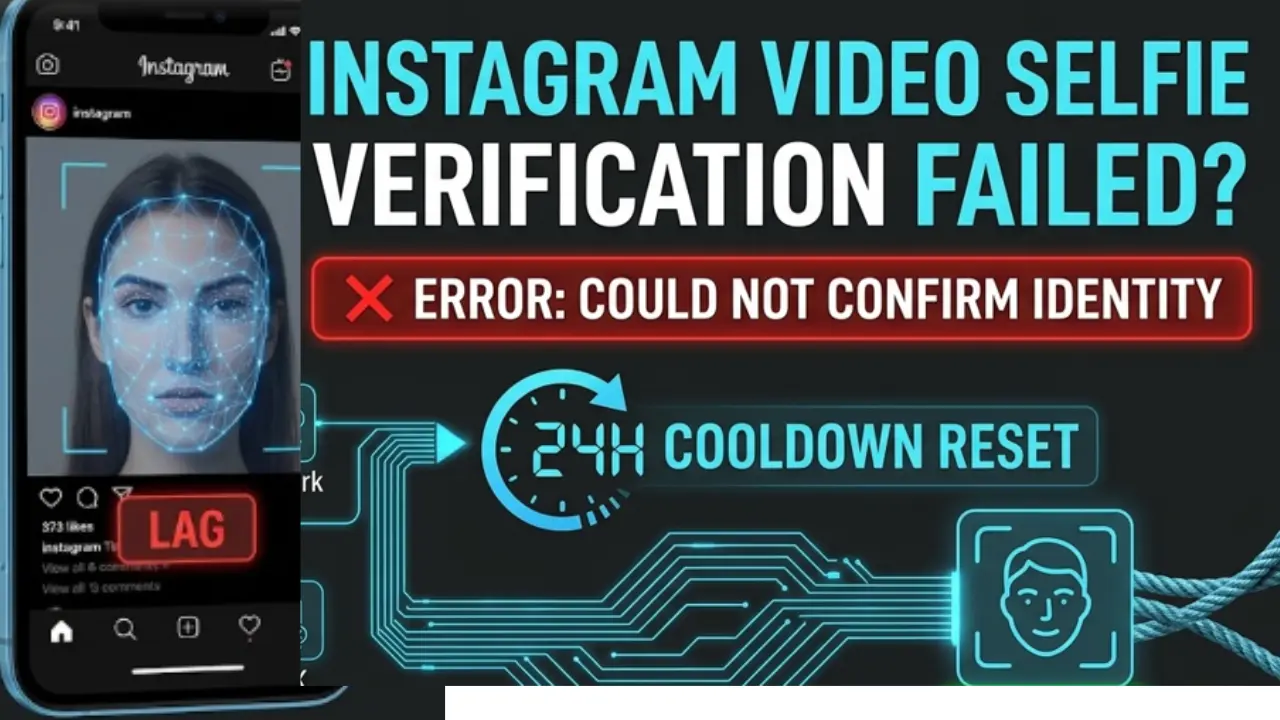
Last week, right after updating my phone's software, I tried to log into my account and it completely locked me out. Meta forced me to turn my head l
Last week, right after updating my phone’s software, I tried to log into my account and it completely locked me out. Meta forced me to turn my head left, right, up, and down to prove I was real. I did it carefully, hit submit, then boom, Instagram video selfie verification failed.
I tried again. And again. Each attempt ended up with “Could not verify your identity” or stuck spinning endlessly. I was convinced my account was gone forever. But after digging into how Meta’s camera AI actually processes facial geometry and data packets, I figured out what was causing the error.
If your Instagram video selfie verification failed today, you’re not alone. It’s usually not because your account has been deleted, it’s not always a technical mismatch between your phone’s camera, lighting, and Meta’s upload servers.
📱 Game Fixed? Join Our Community For Daily Error Fixes & APK Updates!
In this guide, I will share the exact tweaks I used so you can fix this face verification bug and get your account back without getting blocked by anti-spam cooldowns.
Why Instagram Biometric Verification Fails (The Technical Glitch)
When I first hit that endless verification loop, I thought my face wasn’t matching my profile. But after troubleshooting this on multiple devices, I realized that Meta’s biometric AI is extremely sensitive to subtle glitches during the camera scan.
When Meta flags an account, it uses a 3D facial geometry scanner to map the bridge of your nose, eye spacing, and cheekbones. If the camera stutters for even a fraction of a second or a data packet drops while uploading, the server immediately throws an error saying “Verification failed” or “Could not confirm your identity.“
In my experience, failure usually boils down to three major technical obstacles.
1. Camera permission and cache conflicts: If your Instagram app is holding corrupt temporary cache files, especially after an update the camera module will lag during the 3D head movement scan.
2. Network Filtering and Private DNS: If you are running an active VPN or connected to home Wi-Fi with strict firewall/ad-blocking rules, Meta’s identity verification servers will silently drop the video payload mid transfer.
3. App build corruption: If your underlying Instagram app file was corrupted during a recent patch, the biometric module will crash repeatedly. (If you suspect a bad update is the cause, you can check out our guide on how to download the Instagram APK to fix update errors. To revert to a stable build).

After understanding that it was mostly an environmental and hardware communication issue, I found a clear way to fix it.
Instagram Video Selfie Verification Failed: Fixing Lighting, Camera Access & Phone Network (What Finally Worked for Me)
When my Instagram video selfie verification failed for the fifth time in a row, I realized that doing the same thing on my couch wasn’t going to magically fix it. I decided to change my entire physical and technical setup before touching the scan button again.
Here are the four exact adjustments I made to instantly clear my biometric upload:
1. Natural front light (no backlight or glare)
I walked in front of a large window with soft, natural daylight. In my previous failed attempts, there was an overhead light that caused shadows under my eyes and reflections on my phone screen.
Pro tip: Position yourself so that the light hits your face directly. If you wear glasses, take them off or tilt your head slightly so that the camera lens isn’t blinded by reflections.
2. Switched from home Wi-Fi to 5G mobile data
This is a big turnoff. Most home Wi-Fi routers have built-in ad-blockers, strict firewall rules, or security filters that disrupt the transfer of large video payloads to Meta’s security servers.
1. Turn off Wi-Fi completely.
2. Turn off any active VPNs on your phone.
3. Use a direct 4G or 5G cellular connection to upload 3D facial video without dropping packet data.
3. Instagram app cache cleared and camera permissions reset.
If the camera stutters or lags when you turn your head, Meta’s system will automatically flag it as a faulty video and issue an error.
1. On Android: Go to Settings then select Apps & Ads, then tap Instagram, then Storage and Clear Cache.

2. On iPhone: Go to Settings then Instagram, turn off camera access, restart your phone, and turn camera access back on.
3. Close all other background apps (like TikTok, WhatsApp, or YouTube) to let your phone’s processor focus entirely on smooth video recording.
Note: If your entire account was flagged after a major app update, check out our companion guide on how to fix a suspended Instagram account after an update to make sure your account status isn’t locked in an active security review.
Instagram Video Selfie Verification Failed: The 24-Hour Cooldown & Mastering the Motion Technique
The biggest mistake I made in the beginning was trying to scan my selfie repeatedly every time my Instagram video selfie verification failed.
I didn’t realize that Meta’s automated security systems would trigger a rate limit (cooldown period) if you submitted too many failed attempts in a short period of time. Each quick retry further locked my account into a temporary “spam block.”
Here’s how I managed the timing and movement to ensure my last attempt was successful.
1. Enforce a Strict 24-Hour Cooldown
If you fail 3 or 4 times in a row, stop immediately. Do not try to scan again for a full 24 hours. This will reset the automatic anti-spam timer on Meta’s backend servers so your next attempt will be considered a clean submission instead of suspicious bot traffic.
2. Slow down your head movements
When the circular camera frame turns on, it asks you to look left, right, up, and down.
1. Don’t rush: Turn your head slowly when prompted. Turning your head quickly will blur the video, causing the biometric scanner to lose tracking.
2. Pause at each angle: When you turn left, hold your face there for 1 to 2 seconds until the green ring or checkmark registers before turning in the next direction.
3.Keep your eyes on the screen: Keep your eyes towards the front camera lens while turning your head so that the scanner can correctly measure the depth of the eyes and face.

After a 24 hour wait in good light on mobile data and a combination of smooth, slow head turns, my video selfie was completed in less than 10 minutes.
When Meta flags an account, it uses a 3D facial geometry scanner to map your nose bridge, eye spacing, and cheekbones. If you’re having trouble reaching the identity review page, you can check out Meta’s official Identity Security Center for direct account recovery options.
Frequently Asked Questions (FAQ’s) Of Instagram Video Selfie Verification Failed
How long does it take for Instagram to review a video selfie?
When my Instagram video selfie verification initially failed, I thought it would take weeks for the actual verification to happen. But once I was able to upload the video smoothly over mobile data, the AI processed it in about 20 minutes to 2 hours. In some rare cases, if a human moderator needs to double-check your identity, it can take 24 to 48 hours.
What if my profile picture isn’t a picture of my face?
If your profile photo is a brand logo, meme, or landscape, Meta’s automated biometric algorithm won’t have a baseline image to match your scan. If the video selfie keeps failing for this reason, let it fail 2–3 times in a row, and Meta’s system will usually trigger the option to submit an official government ID (such as a driver’s license or passport).
Why do I keep getting the message “Try again later” or “Upload error”?
If you see “You can’t upload photos or videos at this time” or “Try again later,” you’ve reached Meta’s automatic rate limit. Repeated attempts to scan while this error is visible will only reset the penalty timer. Close the app, don’t try to log in, and wait 24 to 48 hours before making your next attempt.
Final thoughts: Don’t panic!
Getting locked out because your Instagram video selfie failed verification is incredibly frustrating, but it doesn’t mean your profile is gone forever. In almost all cases, the failure is caused by a simple technical glitch and bad lighting, camera permission errors, or a dropped upload packet over Wi-Fi.
Take a breath, enforce a 24-hour cooldown, switch to mobile data, and slowly do your next scan in front of a bright window. You’ve got this.
Once you have successfully passed your biometric verification, make sure to remove connected apps immediately and fix API background locks so that your account does not get automatically flagged and suspended again.
If you want to see a visual walkthrough of the exact head movements and identity verification steps, watch this helpful video guide below.

COMMENTS